Board header and controls
Find the board controls you use most often.
Header metrics
The Budgee header can show important metrics that give you a quick health check for the organisation. Learn more in the Dashboard guide.
The header

Header controls overview
Logo: Click the Budgee logo to return to the board selection page.
Organisation name: Click the organisation name to edit it if you want to name it something else.
Tabs: Click a tab to move between views. You can drag tabs to reorder them, add new tabs, and edit existing tabs to change what they show.
Share: Invite other people to view or edit the organisation.
Notifications: View Budgee notifications.
Help: Open help information and support links.
User profile: Open account settings, referrals, and sign-out options.
Scenario creator: Open the scenario drawer to create, organise, turn on, turn off, or remove scenarios. Learn more about scenarios.
Last update: Click this to start an update from your accounting software. Learn more about imports.
Snapshots: Save a point-in-time version of supported Cash Summary-style views and compare the current board against it later.
Print: Print grouped financial reports or dashboard reports for meetings, reviews, or PDF export.
Go To: Jump to a specific time period without scrolling.
Filters: Limit the transactions shown on the board so you can quickly find the items you need.
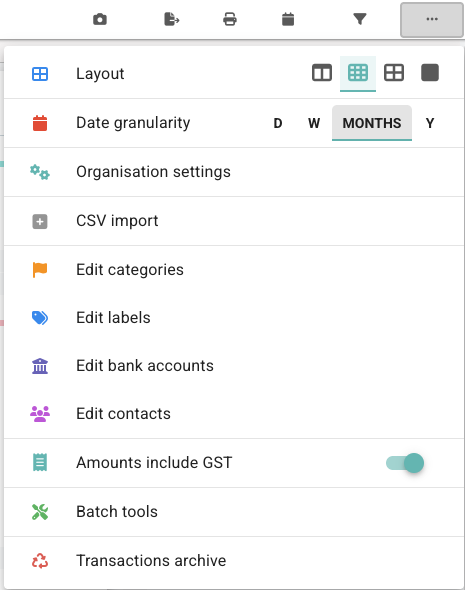
Options: Open board settings, display options, sales tax settings, categories, bank accounts, and other board tools.
Tabs
Tabs in the Budgee header show different views of your transactions. You can add custom tabs and edit your existing ones.
The default tabs created with each board are:
Tab name | What it shows | What it is useful for |
|---|---|---|
Cash summary | Your incoming, outgoing, and transfer transactions grouped by categories. | Seeing where your cash is coming from and where it is being spent. |
Dashboard | Multiple visualisations, simplified financial reports, useful table summaries. | Seeing overviews, trends, and quickly understanding what is going on with your business. |
All transactions | All your transactions by month | Seeing everything without hiding them in groups. This is a great view to find specific transactions. Filters are very useful here. |
Other preset tabs include the following:
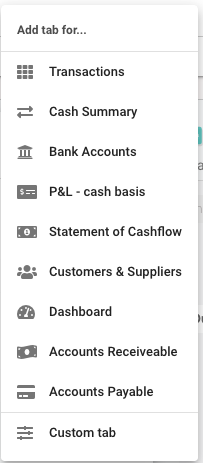
You can also create custom tabs with your own name, saved filters, and footer settings. Learn more in Tabs and views..
Sharing & Permissions
Click Share to invite other people to the organisation. When you invite someone, choose a permission level that controls what they can see and do.
How to invite a new user
1. Click the Share button in the Budgee header.
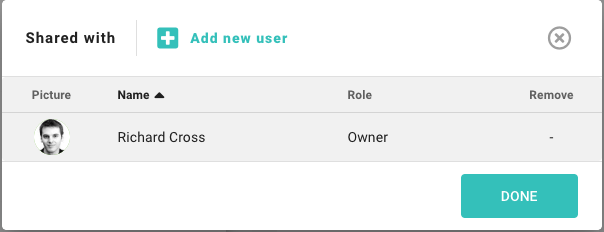
2. The sharing menu shows everyone who currently has access. Click Invite User.
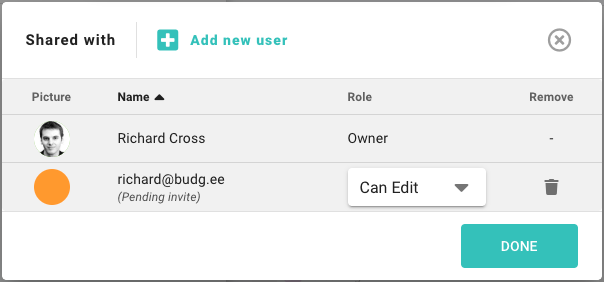
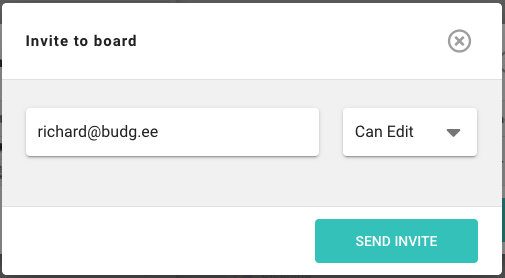
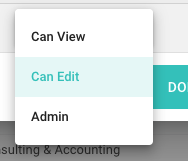
3. Enter the person's email address and choose their permission level: Admin, Edit, or View.
4. The person appears as Pending until they accept the invitation from their email.
Permission Levels
| Role | Description |
|---|---|
Admin |
|
Edit |
|
View |
|
Options
The Options menu contains board-level settings and quick toggles.
| Option | Description |
|---|---|
Board settings | Rename your board, adjust your organisation's financial year start, and manage other high-level preferences. |
Sales tax / GST | Toggle whether transaction amounts display inclusive or exclusive of sales tax (e.g., GST or VAT) across the board. |
Export | Download your board data to a CSV or Excel file for external reporting or record-keeping. |
Categories & Labels | Open the management tools to create, edit, or delete categories and labels used to group your transactions. |
Contacts | Manage your customer and supplier records synced from your accounting software or created manually. |
Bank Accounts | |
Find a group of transactions or repeating series and apply the same change (like reclassifying or archiving) to all of them at once. | |
Review archived cards, recurring items, and forecast items, then restore or delete them where allowed. |