
Import options and progress
Choose what accounting data to import, follow cloud import progress, and handle interrupted imports.
Use import options when you want to control:
- how much history is imported
- whether unused categories are brought in
- whether unused bank accounts are brought in
- whether unused contacts are brought in
- what is happening during a long cloud import
Where to find import options
Start an accounting import or update from the organisation setup flow or from Last update in the board header.
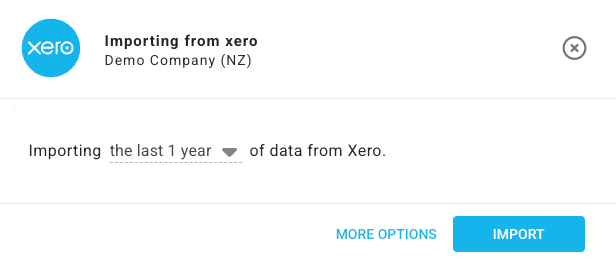
Before starting a new import, click More options to choose the import scope.
Choose the history range
The import flow asks how much accounting history to bring into Budgee.
| Option | What it does |
|---|---|
| Last 1 year | Imports roughly one year of history. This is usually a good starting point. |
| Last 2 years | Imports more historical context for larger or seasonal organisations. |
| Custom start date | Imports accounting data from the date you choose. |
Use More options
Click More options before starting the import to choose how much supporting data Budgee should bring in.
| Option group | Choices | When to use it |
|---|---|---|
| Category imports | Only import used, or Import all. | Use only used categories to keep Budgee cleaner. Import all when you want the full chart available for planning. |
| Bank account imports | Import none, only import used, or Import all. | Use only used accounts to avoid clutter. Import all when you expect to plan with accounts that have no recent transactions. |
| Contact imports | Only import used, or Import all. | Use only used contacts for smaller lists. Import all when you need contacts available for forecasting or card setup. |
Start the import
- Choose the history range.
- Open More options if you need to change category, bank account, or contact scope.
- Click the import or update button.
- Use the progress screen to check the current import status.
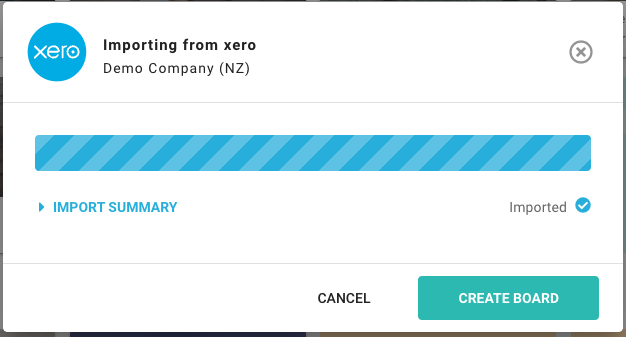
Budgee runs Xero imports in the cloud. You can leave the page or close the window while the import runs, then come back to the current progress later.
Understand the progress screen
Large accounting imports can take several minutes. Budgee shows the current progress so you can see whether the import is still working, waiting, finished, or needs attention.
Controls and messages can include:
- Progress bar: shows the import moving through the main stages.
- Status title: explains the current import stage.
- show details / hide details: opens or hides the detailed import status list.
- Import item status list: shows whether import items are paused, importing, or imported.
You can start imports for multiple organisations at the same time. Each import keeps its own progress and can be checked from the relevant organisation.
Leave and return to an import
If you leave Budgee while an import is running, the import keeps going in the cloud.
- Return to the organisation to check the current progress.
- Use the progress screen before starting the same import again.
- If the import has finished, continue from the completion action shown on screen.
If progress appears unchanged, check the progress screen again before restarting. Budgee may still be working through a large import.
Resume, cancel, or clear an interrupted import
If an import is interrupted or gets stuck, Budgee may show actions to resume, cancel, or clear the import from the import screen.
- Resume continues an import that can keep going.
- Cancel stops an import you no longer want to run.
- Clear removes an import state that should no longer block the organisation.
Use the action shown on screen. If you are unsure, read the import message before clearing anything.
Connection issues and reconnecting
If the accounting connection needs attention, Budgee may show a connection issue message and a Reconnect button.
- Read the reason shown in the connection issue message.
- Click Reconnect.
- Authorise the connection again in the accounting system.
- Return to Budgee and rerun the import or update if needed.
After the import finishes
After import, Budgee can add, update, archive, restore, or remove imported records to match the accounting source.
Useful places to check next:
- Dashboard: check the high-level cash view.
- Cash Summary: review incoming, outgoing, and transfers.
- Import log: review import details and accounting balance checks where available.
- Transaction archive: review archived imported items if cleanup or repair work was run.
- Forecast assumptions: review automatic forecast updates and stale forecast methods.