
Scenarios guide
Scenarios let you test possible changes without editing your real data.
You can use them to:
- hide matching transactions
- increase or decrease amounts
- set amounts to a fixed value
- move dates earlier or later
- add one-off transactions
- add repeating transactions
Scenarios are useful when you want to explore possibilities such as:
- What happens if sales rise by 10%?
- What happens if customers pay two weeks later?
- What happens if we hire someone next month?
- What happens if a certain cost disappears?
A simple way to think about scenarios is:
- choose the kind of change you want
- choose which transactions it should affect
- turn the scenario on
- review the outcome across your tabs
Where to find scenarios
Scenarios are managed from the Scenario creator.
From there, you can:
- add a new scenario
- organise scenarios into folders
- turn scenarios on or off
- select an existing scenario to edit or delete it
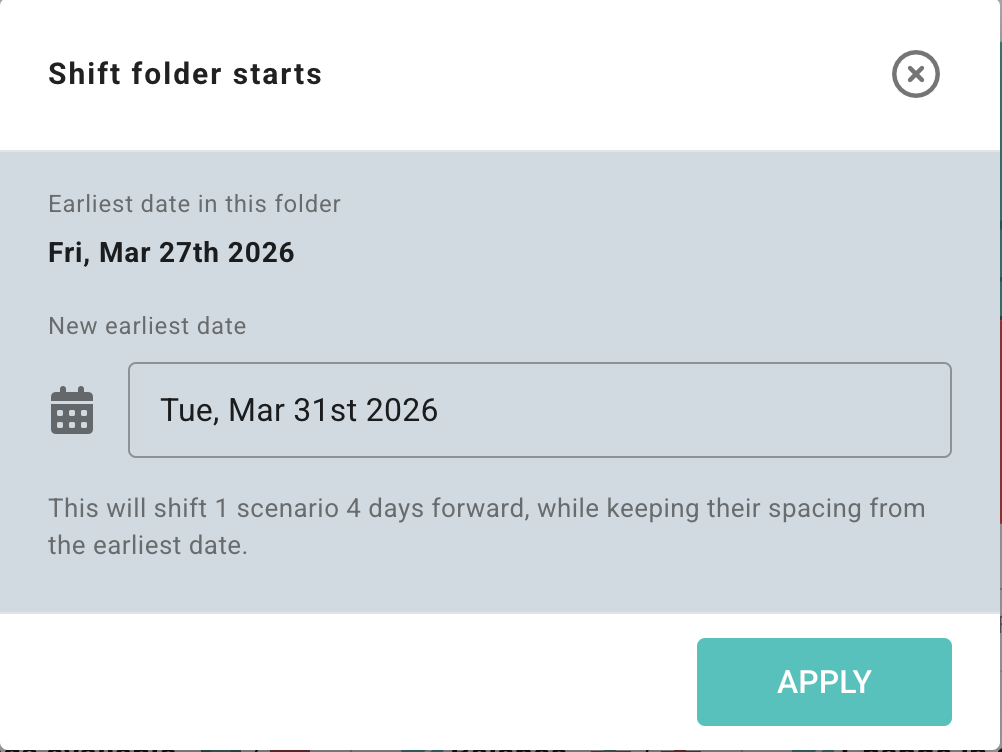
If any scenarios are active, Budgee shows the active count in the Scenario creator area.
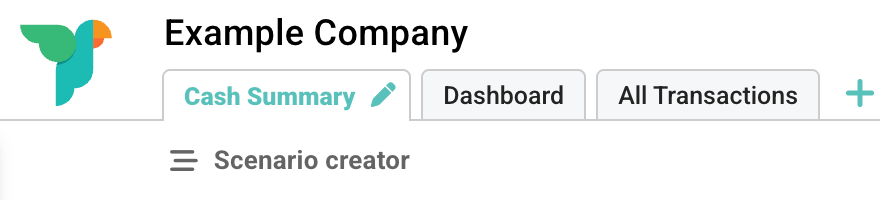
1. Create a scenario
Select Add, then choose what you want to create.
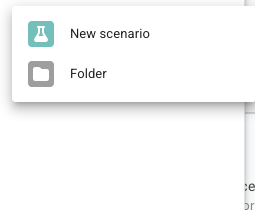
Choose New scenario to build a scenario rule. Choose Folder when you want to organise related scenarios together.
When the scenario editor opens, use the first dropdown to choose the kind of scenario you want to build.
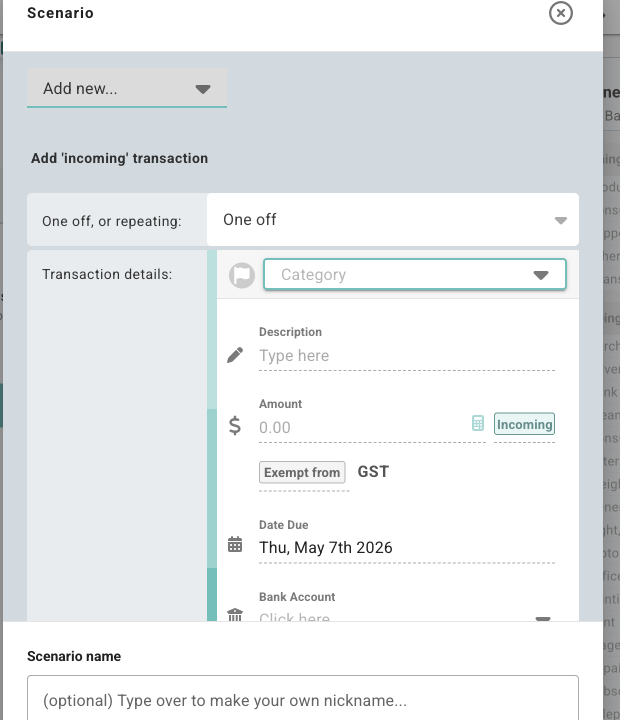
The main scenario actions are:
- Add new…
- Hide all that…
- Increase by…
- Decrease by…
- Set to…
- Bring forward by…
- Delay by…
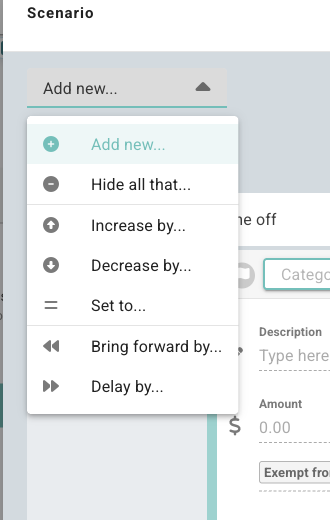
Scenario types
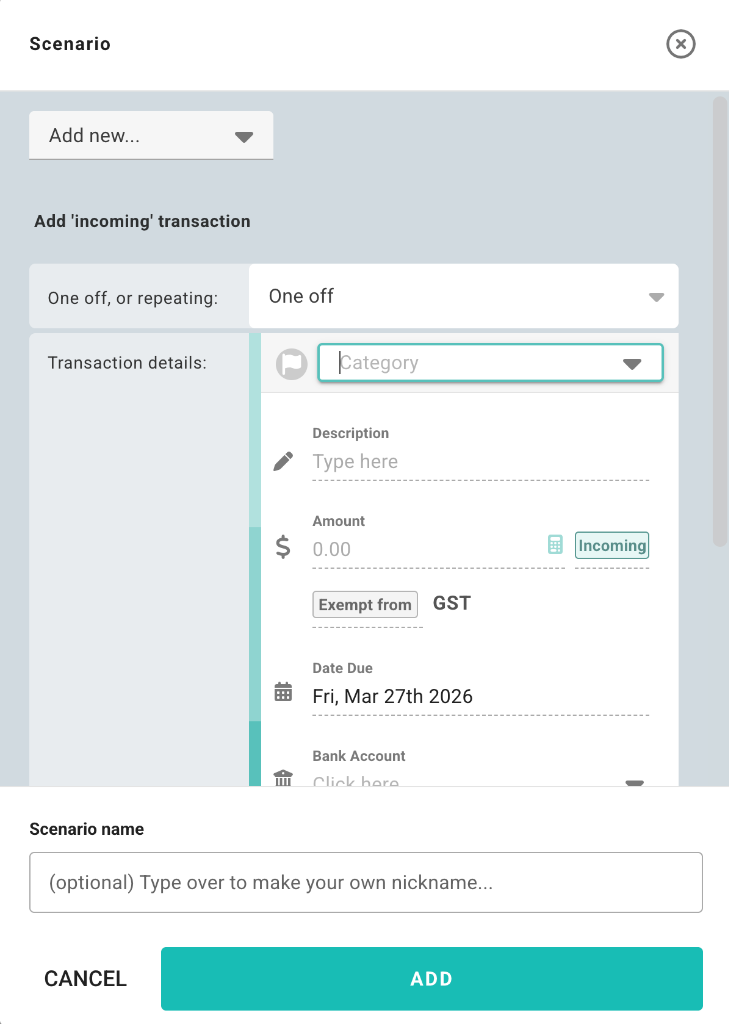
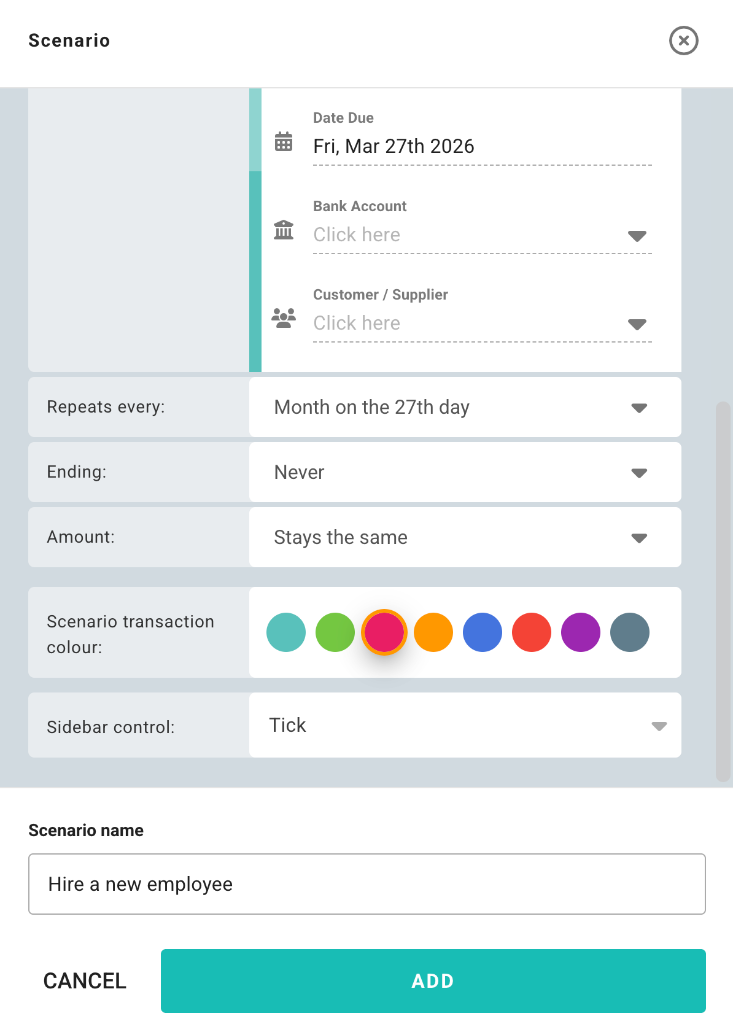
Add new…
Add new transactions that only exist inside the scenario.
Use it when you want to model:
- a planned marketing spend
- a new contract starting next month
- a temporary recurring cost
- an expected new revenue stream
What Budgee changes:
Budgee adds a one-off or repeating scenario transaction without changing the original board data.
Hide all that…
Remove matching transactions from the scenario view.
Use it to answer:
- What if this cost goes away?
- What if we exclude this income stream?
What Budgee changes:
Matching transactions are hidden while the scenario is active. Turn it off and they appear again.
Increase by… / Decrease by…
Change matching amounts by a percentage or a fixed dollar amount.
Use it to answer:
- What if sales rise 10%?
- What if supplier costs increase by $500?
What Budgee changes:
Budgee adjusts the matched amounts and updates the totals, balances, dashboards, and grouped views.
Set to…
Replace matching amounts with one fixed incoming or outgoing value.
Use it when you want:
- a clean target number
- a known monthly amount
- a fixed best-case or worst-case value
What Budgee changes:
Each matched transaction uses the amount you set, instead of a relative increase or decrease.
Bring forward by… / Delay by…
Move matching transaction dates earlier or later.
Use it to answer:
- What if invoices are paid two weeks later?
- What if this project starts one month earlier?
What Budgee changes:
The affected transactions move into their new periods, so the cash flow timing updates across the board.
2. Choose which transactions the scenario should affect
For most scenario types, except Add new…, the next step is deciding which transactions should match.
A category is the Budgee cash flow grouping for the transaction. If you connect accounting software, it usually comes from your chart of accounts.
You can target transactions using filters such as:
- description
- category
- labels
- bank account
- allocation or tracking category
- incoming, outgoing, or transfer
- transfer destination
- paid or unpaid
- due date range
- source
- contact
You do not need to use every filter. Usually, one or two good filters are enough.
A good way to build scenarios
Start with the smallest reliable filter set. For example:
- category and date range
- contact and type
- source and paid or unpaid status
Forecasting tip: For most scenarios, you want to choose unpaid to ensure they only apply to transactions in the future.
3. Save the scenario
When you save a new scenario, Budgee turns it on straight away.
That means you can create a scenario and immediately see the effect in the board.
If the scenario is incomplete, Budgee will not let you save it yet.
4. Turn scenarios on and off
Each scenario has a checkbox.
| State | Meaning |
|---|---|
| Checked | The scenario is active |
| Unchecked | The scenario is inactive |
Folders can also be toggled, which turns all scenarios inside that folder on or off together.
5. Try ranges with sidebar controls
Some scenario questions are better tested as a range. A sidebar control lets you change the scenario value from the Scenario creator, without opening the full editor each time.
In the scenario editor, set Sidebar control to the control that suits the question:
- Tick turns the scenario on or off.
- Number lets you type a value directly.
- Slider lets you move through a minimum and maximum range.
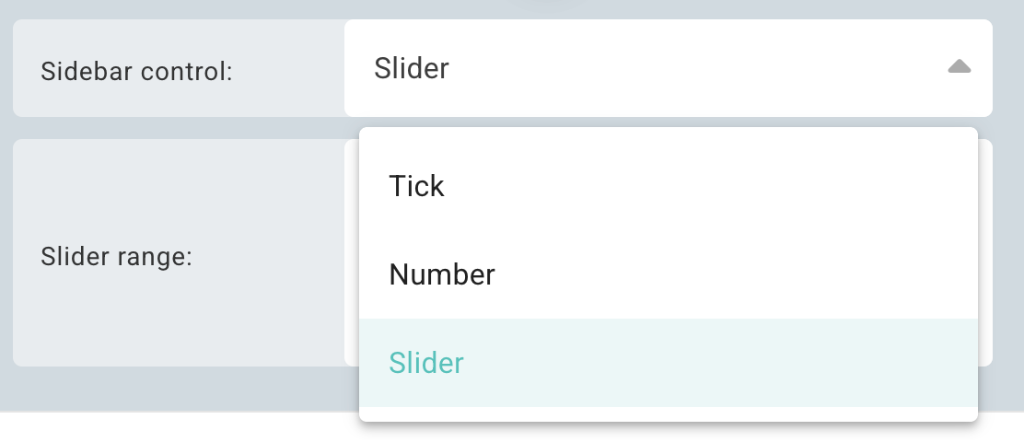
What changes when you move the control?
The control changes the main value for that scenario. For an Add new… scenario, that is the transaction amount. For Increase by…, Decrease by…, or Set to…, it is the amount or adjustment. For Bring forward by… or Delay by…, it is the timing offset.
Delay payments by 2 to 4 weeks
Use a slider when the timing might move, but you still have a sensible range in mind.
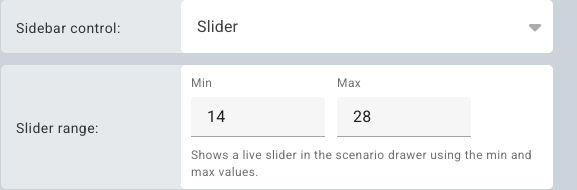
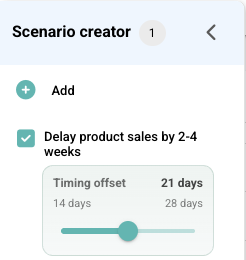
For example, create a Delay by… scenario, set the starting value to 21 days, then set the slider range from 14 to 28 days. You can then move between a two-week and four-week delay from the sidebar.
Try a salary range
Use a slider when a new cost is possible, but the amount is not final yet.
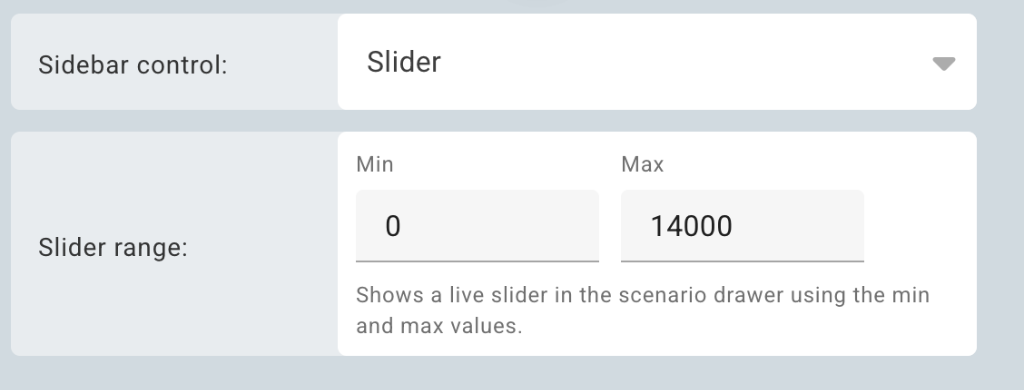
For a possible hire, create the salary or wage scenario, choose Slider, then enter the lowest and highest amounts you want to test. Drag the slider to see how each amount affects the board.
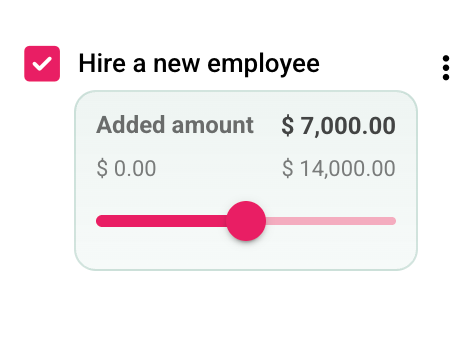
Good to know: The scenario stays active while you move the slider, so the board, dashboards, and totals update as you test the range.
6. Understand what happens across tabs
This is the most important thing to know about scenarios:
Active scenarios are not tied to one tab.
When you turn a scenario on, it stays active for you across the whole board, even when you switch tabs.
That means you can:
- turn on a scenario in one tab
- move to another tab
- see that tab redraw using the same active scenario set
Each tab simply shows the same scenario outcome in its own layout.
What you might notice when switching tabs
Depending on the scenario, you may see:
- transactions disappear if a hide scenario is active
- amounts change if an amount scenario is active
- dates move into different periods or columns if a date scenario is active
- new one-off or repeating transactions appear
- totals, balances, and grouped rows change because the displayed transactions changed
Important detail
Scenario activation is stored per user for the board.
That means:
- your active scenarios follow you across tabs
- the number or slider value you choose also follows you across tabs
- they are not automatically turned on for every other user
7. See how scenario outcomes appear in the app
Budgee gives you several clues when a scenario is affecting what you are looking at.
On transaction cards
You may see:
- a scenario-coloured highlight
- changed amounts
- a lock icon when a scenario is controlling the displayed date
- cards moving into different periods because the displayed date changed
In the transaction dialog
If you open an affected transaction, you may see:
- an amount hint showing the value after scenarios
- date fields disabled with Disabled by a date scenario
- a banner showing that the transaction is part of a scenario
- a View button that jumps straight to that scenario
In grouped or summary tabs
Because active scenarios change the displayed transactions, you may also see:
- different totals
- different counts
- different group balances
- different cards appearing in each group or period
In forecasting
Scenario-created future transactions can also appear in forecasting views.
In forecast charts, they are treated as other future transactions, not as forecast assumptions generated by the forecasting engine.
8. Use folders to organise scenarios
Folders help you group related scenarios together.
For example:
- a hiring plan
- a downside case
- a growth case
- a seasonal campaign
Folders are useful when you want to:
- keep a long scenario list tidy
- turn a whole set on or off together
- duplicate a grouped plan
- shift the dates of a grouped plan together
Folder controls can include:
| Control | What it does |
|---|---|
| Expand / collapse | Shows or hides the scenarios inside the folder. |
| Group checkbox | Turns the scenarios inside the folder on or off together. |
| Scenario group name | Names the folder so the scenario set is easier to recognise later. |
| Actions menu | Opens actions such as shift, duplicate, or delete for the folder. |
| Duplicate group | Copies the folder and the scenarios inside it so you can make another version of the plan. |
| Delete group | Deletes the folder and grouped scenarios after confirmation. |
Folders can be nested when you need a larger planning structure, such as a parent folder for a board pack and child folders for hiring, sales, tax, or funding scenarios.
9. Shift scenario start dates
Scenarios often become less useful when their dates drift into the past.
Budgee lets you shift the start date for:
- one scenario
- a whole folder
When you shift a folder, Budgee keeps the spacing between the scenarios inside it.
This is useful when reusing a plan from an earlier month or year.
If a scenario already starts in the past, Budgee warns that it may already be affecting the forecast.
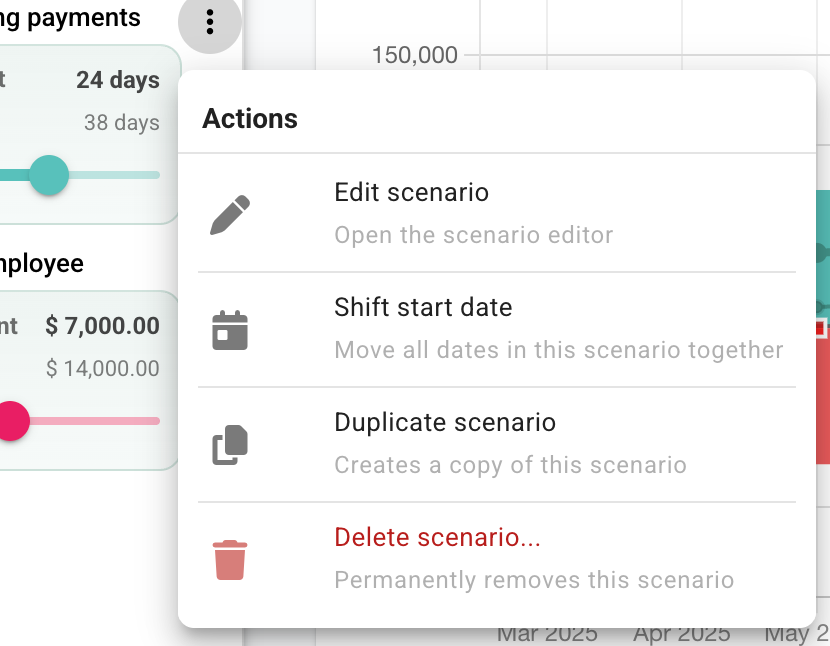
Where relevant, shifting a scenario or folder also shifts related recurring forecast timing so the plan rolls forward together rather than leaving old recurring dates behind.
10. Review scenarios from affected transactions
If a transaction belongs to a scenario, the transaction dialog may show a scenario banner with a View button.
This gives you a quick way to:
- confirm why a transaction is there
- jump to the scenario behind it
- adjust the scenario instead of editing the generated transaction directly
This is especially useful for scenario-created repeating transactions.
11. Practical ways to use scenarios
Good first scenario ideas include:
- increasing one income category by 10%
- delaying outgoing payments by 14 days
- hiding a non-essential expense category
- adding a repeating salary or contractor cost
- adding a one-off equipment purchase
Practical tips
| Tip | Why it helps |
|---|---|
| Keep scenarios small and clear | Two simple scenarios are usually easier to trust than one sprawling monster |
| Use folders for versions of the same idea | Great for Best case, Base case, and Worst case |
| Expect cards to move if dates change | Date scenarios can shift items into different periods |
| Use scenarios for personal testing | Active state is per user, so they are good for private exploration |
| Review multiple tabs after turning one on | Different tabs reveal different consequences of the same scenario |
Reference details
Description matching
Important: The description filter requires an exact full-description match and is case sensitive.
Worth remembering if something is not matching when you expected it to.
Amount behaviour
Increase by… and Decrease by… support both % and $ adjustments.
Set to… replaces the amount entirely and lets you choose Incoming or Outgoing.
Sign protection
Increase and decrease scenarios will not flip a transaction from incoming to outgoing (or vice versa). If the calculation would cross zero, Budgee clamps it at zero instead.
Scenario order matters
Scenarios are applied in the order they appear in the scenario list. This means the sequence can affect the final result.
For example, if a transaction starts at $200:
- Set to $100 then Increase by 10% → result is $110
- Increase by 10% then Set to $100 → result is $100
If your scenarios are not producing the result you expect, check the order they appear in the list. You can drag scenarios to reorder them.
Date shift units
Date scenarios shift transactions by a chosen number of days, weeks, months, or years.
Dragging affected transactions by date is blocked while a date scenario controls the displayed date.
Add new… details
For repeating scenarios, the editor includes transaction details, frequency, end rules, amount change rules, and scenario transaction colour.
Saving and validation
| Scenario type | What is needed to save |
|---|---|
| Non-add scenario | A usable matching scope |
| Amount-changing scenario | A usable amount |
| Add scenario | Transaction details |
An incomplete scenario appears as not fully valid in the list.
Scenario list actions
Each scenario row supports activate/deactivate and opening the scenario editor.
The editor is where you update or delete the scenario.
Missing references
If a scenario points to something that no longer exists (e.g. a deleted category, contact, or bank account), Budgee shows a missing reference warning. Review the scenario before relying on its result.