
Printing financial reports
Print clean financial reports from grouped views and dashboard views.
Use printing when you need a report for:
- client meetings or advisory sessions
- monthly reporting packs
- internal reviews
- lenders, investors, or advisors
- saving a PDF copy of a board view
Where to find Print
Open a board and go to the view you want to print.
Use the Print button in the board header.
Print is available in two main places:
- Grouped financial views: Cash Summary, Profit and Loss, Statement of Cash Flow, Balance Sheet, and similar grouped report views.
- Dashboard: the Dashboard tab and any dashboard-style view.
Print a grouped financial report
- Open the grouped view you want to print.
- Check the view settings, filters, scenarios, sales tax mode, and date granularity.
- Click Print in the board header.
- In Print columns, choose the Start date.
- Choose the Number of days, weeks, months, or years to include.
- Click Print.
- Use your browser print window to print or save as PDF.
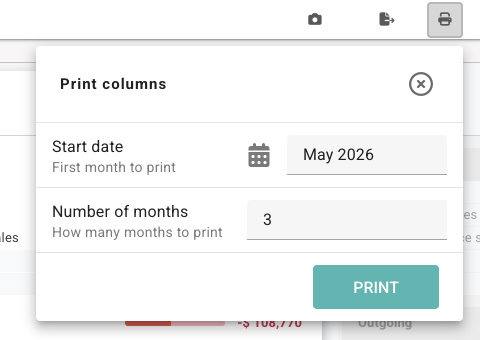
Controls in the Print columns menu
| Control | What it does |
|---|---|
| Start date | Sets the first period included in the printed report. |
| Number of days, weeks, months, or years | Sets how many period columns are printed. Budgee limits this to keep the report readable. |
| Prepares the report range and opens the browser print window. |
The period label changes with the board granularity. If the board is in Months, the menu asks for the number of months. If the board is in Weeks, it asks for the number of weeks.
Print the Dashboard
- Open the Dashboard tab.
- Wait for the dashboard sections and tables to finish loading.
- Click Print in the board header.
- Use your browser print window to print or save as PDF.
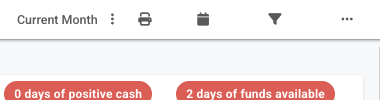
The Dashboard print path does not ask for a column range first. It prints the dashboard view using the dashboard sections and date range currently shown.
Why Dashboard printing may wait
Dashboard sections can render after the tab opens, especially on larger organisations. Budgee waits for the main report sections to be ready before opening the print window, so the PDF is less likely to miss tables or summary sections.
What printed reports include
Printed grouped reports are formatted for reading outside the live board. Depending on the view, the report can include:
- company or organisation name
- report title
- period columns
- section headings
- group and subgroup rows
- totals and balances
- cleaner spacing for PDF and paper output
Before you print
Printed reports reflect the board state you are looking at. Before printing, check:
- Active scenarios: turn scenarios on or off depending on whether the printout should show the base forecast or a scenario case.
- Filters: clear filters if the report should show the full view.
- Sales tax mode: confirm whether amounts are shown including or excluding sales tax.
- Granularity: choose days, weeks, months, or years before opening the print menu.
- View setup: check whether balances, cents, and empty rows should be shown.
Troubleshooting
| Issue | What to check |
|---|---|
| The wrong periods printed | Reopen Print and check the start date and number of periods. |
| A dashboard report looks incomplete | Wait for the Dashboard to finish rendering, then print again. |
| The report includes scenario numbers | Turn off active scenarios before printing if you want the base forecast. |
| The report is too wide | Print fewer periods, or change browser print settings such as paper size and orientation. |