
Snapshots
Save a point-in-time version of a supported cash flow view and compare it with the current board.
Snapshots help you keep a record of:
- a baseline forecast
- a board-approved plan
- a scenario review
- a month-end reporting checkpoint
- a cash position before major changes are made
Where to find snapshots
Open a supported Cash Summary-style view, then click Snapshots in the board header. The button uses a camera icon.
If the current view does not support snapshot comparison, Budgee does not show the Snapshots button for that view.
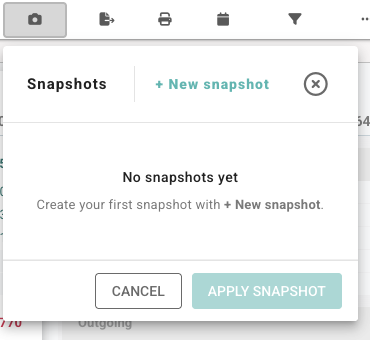
Create a snapshot
- Open the Cash Summary view you want to capture.
- Set the date range and granularity you want to use.
- Turn scenarios on or off depending on what you want saved.
- Apply or clear filters depending on what you want saved.
- Click Snapshots.
- Click + New snapshot.
- Enter a clear Snapshot name.
- Choose the supported Views the snapshot should apply to.
- Choose one or more Granularity options.
- Set the Start Date and End Date.
- Click Create snapshot.
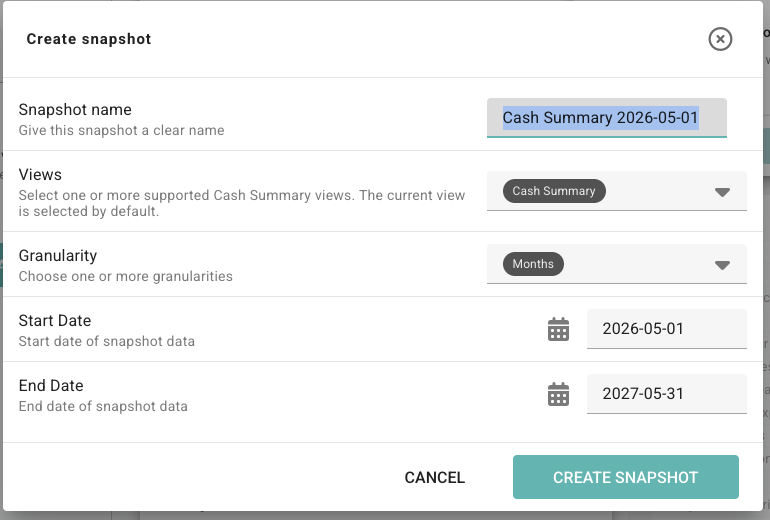
Snapshot creation controls
| Control | What it does |
|---|---|
| Snapshot name | The saved name shown later in the snapshot list. |
| Views | Chooses which supported Cash Summary views the snapshot can be compared against. |
| Granularity | Chooses whether comparison data is saved for days, weeks, months, or years. |
| Start Date | Sets the first date included in the snapshot. |
| End Date | Sets the last date included in the snapshot. |
| Create snapshot | Saves the snapshot and stores the comparison data for the selected views and granularities. |
If scenarios or filters are active when you create the snapshot, Budgee records that context in the snapshot notes. This helps explain why a saved snapshot may differ from the current board later.
Find saved snapshots
Open Snapshots to see saved snapshots for the board.
The snapshot list can show:
- snapshot name
- captured date
- scenario and filter context
- date range
- views included
- granularities included
- snapshot status
Use Search snapshots when the list is long. Search can match names, date ranges, notes, views, granularities, and status.
Apply a snapshot comparison
- Open the same supported view and granularity that the snapshot was created for.
- Click Snapshots.
- Select the snapshot row.
- Click Apply snapshot.
When a snapshot is active, grouped rows can show the saved snapshot amount and the change from that saved amount.
Comparison values
| Value | Meaning |
|---|---|
| Snapshot amount | The saved value from the point in time when the snapshot was created. |
| Variance | The current amount minus the snapshot amount. |
| Variance % | The variance compared with the snapshot amount. If the snapshot amount was zero, Budgee may show no percentage. |
Show change as % or Amount
When a snapshot is active, use Show change as to switch the comparison between % and Amount.
- % is useful when you want to see relative movement.
- Amount is useful when the dollar impact matters more than the percentage.
Clear or delete snapshots
If a snapshot comparison is active, use the clear button beside the Snapshots control to stop comparing against it.
To remove a saved snapshot permanently:
- Open Snapshots.
- Find the snapshot in the saved list.
- Click the delete icon.
- Confirm the delete action.
Deleting a snapshot removes the saved snapshot and its stored comparison data. Use delete only when you no longer need that checkpoint.
Things to know
| Situation | What happens |
|---|---|
| Current view does not match | The snapshot cannot be applied until you switch to a supported saved view. |
| Current granularity does not match | Switch to a granularity included in the snapshot, such as Months or Weeks. |
| Filters or scenarios changed | Budgee can still compare, but it may warn that the current context differs from the saved context. |
| Snapshot is building or failed | Only ready snapshots can be applied for comparison. |