
Tabs and views
Create useful views of the same organisation data.
Tabs help you organise your view in Budgee. You can use them to show different sets of transactions, group information in different ways, or create dashboard-style summary views.
Use the Add tab or Edit tab window to control what appears in a tab and how it is displayed.
What you can do in this screen
You can use this screen to:
- Name a tab
- Filter which transactions appear
- Choose the tab type
- Choose whether amounts are shown sales tax inclusive
- Choose whether cents or balances are shown
- Group transactions
- Choose group, subgroup, and third-level display rules
- Customise dashboard views
- Choose which footer totals are shown
- Delete a tab
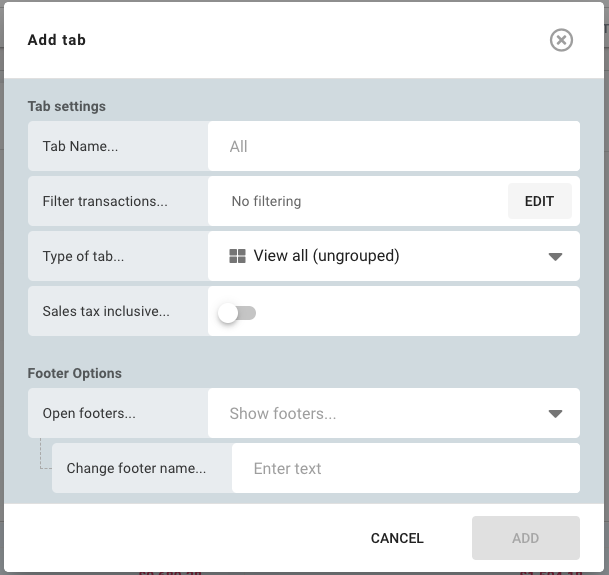
Tab settings
Tab name
This is the name shown on the tab.
If you leave it blank, Budgee will choose a default name based on the tab setup. For example, it may use a name such as All cards, Dashboard, or the selected grouping name.
Filter transactions
Use filters to control which transactions appear in the tab.
If no filters are applied, the tab will show all relevant transactions.
Select Edit to open the filter window and choose the filters you want. Select Clear Filters to remove them.
Type of tab
Choose how the tab should display information.
| Tab type | What it does | Best for |
|---|---|---|
| View all (ungrouped) | Shows transactions in a single list without grouping | Simple transaction views |
| Grouped | Groups transactions by a selected field | More structured analysis |
| Dashboard | Shows dashboard items instead of a transaction list | Summary and management views |
Sales tax inclusive
Choose whether values should be shown including or excluding sales tax by default.
This setting controls the default view when you open the tab. You can still turn sales tax on or off from the sidebar whenever you need to.
Hide cents
Turn this on when the view is being used for review or reporting and rounded amounts are easier to read.
Leave it off when cents matter, such as when you are checking imported transactions or reconciling details.
Show balances
Turn this on where the view supports running or period balances. This is useful for report-style views where the balance movement matters as much as the transactions.
Grouped tab settings
These settings appear when the tab type is set to Grouped.
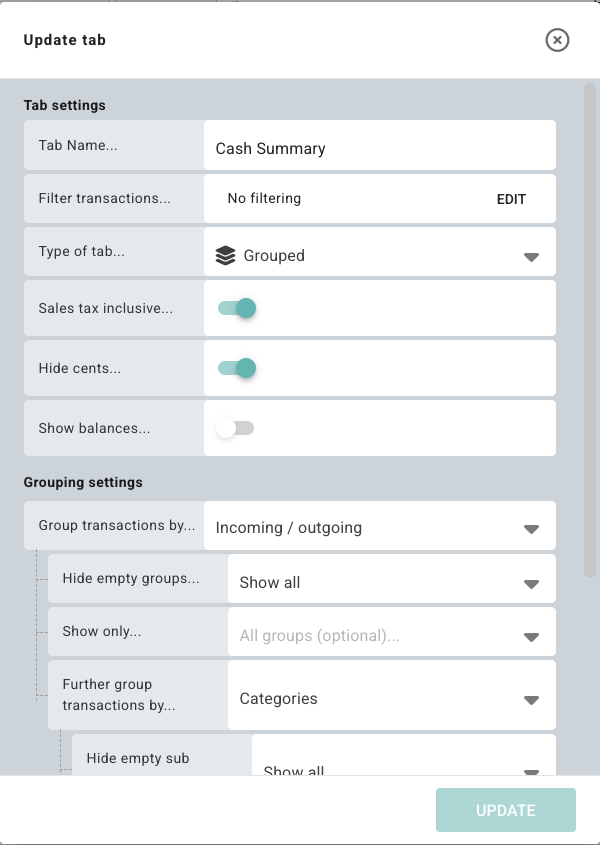
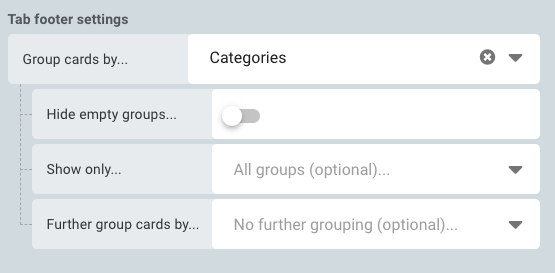
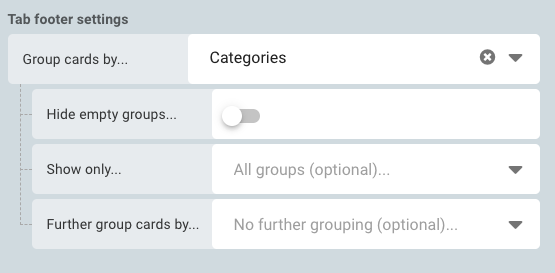
Group transactions by
Choose the main way transactions should be grouped.
Available grouping options depend on your organisation settings and data. For example, you may see options such as category, allocation, or bank account. A category is the cash flow grouping Budgee uses to organise related transactions.
Hide empty groups
| Option | Meaning |
|---|---|
| Show all | Show all groups, even if they are empty |
| Smart hide | Hide empty groups where it helps reduce clutter |
| Always hide empty | Never show empty groups |
Show only
Use this to limit the tab to selected groups only.
Leave it blank to show all groups. This is helpful when you want a tab focused on a smaller subset of your data.
If the tab supports deeper grouping, you may also see controls for selected subgroups or selected third-level rows.
Further group transactions by
Add a second level of grouping inside the first one.
For example, you might group first by client, then by category. Leave this blank if you only want one grouping level.
Third-level grouping and empty rows
Some grouped reporting views support a third grouping level. Where this exists, Budgee may show separate empty-row controls for group, subgroup, and third-level rows.
| Control | What it is for |
|---|---|
| Hide empty groups | Controls whether empty top-level rows appear. |
| Hide empty sub groups | Controls whether empty second-level rows appear. |
| Third-level hide-empty controls | Controls whether empty third-level rows appear where the view supports them. |
Dashboard settings
These settings appear when the tab type is set to Dashboard.
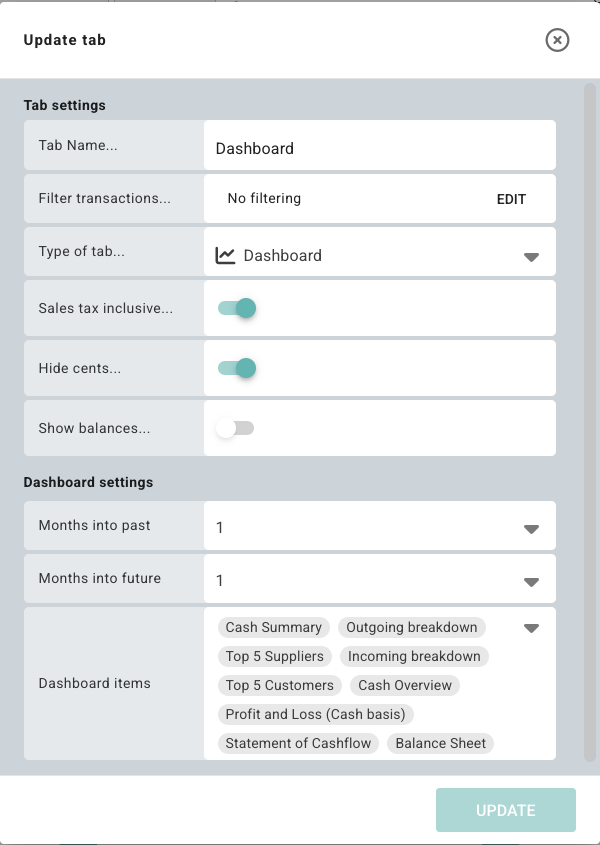
Months into past / future
Choose how many months of past data and how many months ahead the dashboard should show.
Dashboard items
Choose which dashboard components should appear on the tab.
Footer options
These settings appear on non-dashboard tabs.
Open footers / sub-footers
Choose which main footer sections and detailed rows should be visible.
Change footer name
Use this field to rename the main footer label for this tab.
Delete a tab
If the tab can be deleted, a Delete tab button will appear at the bottom. Deleting a tab removes it from the board. Some tabs may be protected and cannot be deleted.
Things to know
| Behaviour | What happens |
|---|---|
| Leave the tab name blank | Budgee automatically assigns a name |
| Change the main group type | Any selected groups are cleared |
| Use a dashboard tab | Footer options are hidden |
| Protected tab | Delete option is not shown |
Example ways to use tabs
Simple transaction tab:
- Type of tab: View all (ungrouped)
- Filters: none
- Sales tax inclusive: off
Management dashboard tab:
- Type of tab: Dashboard
- Months into past: 2 | Months into future: 3
- Dashboard items: selected summary items only
Tips
- Use separate tabs for different purposes rather than trying to fit everything into one view.
- Filters and grouping work well together. A filtered grouped tab can give a very focused view.
- Dashboard tabs are best for summary views. Grouped and ungrouped tabs are better when you need to inspect individual transactions.