
Batch tools
Find a group of transactions or repeating series and apply the same change to all of them at once.
They are useful when you need to make the same update across many items, such as:
- reclassifying a group of transactions
- moving many transactions to a different bank account
- replacing labels on a whole set of items
- archiving or deleting a large batch
Select forecast cards on the board
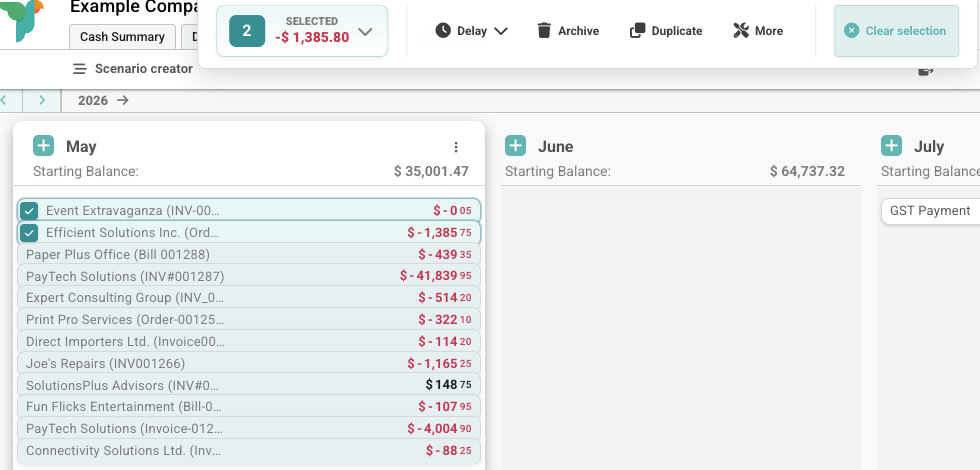
On board columns, you can select one or more forecast cards before choosing an action.
- Click a card to select it.
- Use Cmd on Mac or Ctrl on Windows to add or remove individual cards.
- Use Shift to select a range of cards.
- Use the selection bar at the top of the board to act on the selected cards.
Multi-select is useful when related forecasts need the same cleanup, delay, archive, duplicate, or batch update.
Use the batch action bar
When one or more cards are selected, Budgee shows a selection bar at the top of the board.
The bar shows the number of selected cards and the combined selected value.
| Control | What it does |
|---|---|
| Selected count and total | Shows how many cards are selected and their combined value. |
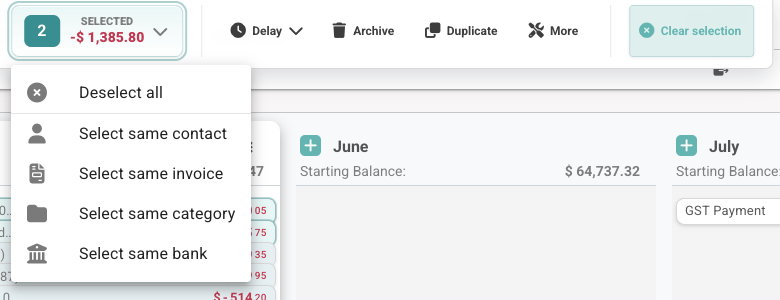
| Deselect all | Clears every selected card. |
| Select same contact | Adds visible cards in the same column with the same contact as a selected card. |
| Select same invoice | Adds visible cards in the same column from the same invoice or reference. |
| Select same category | Adds visible cards in the same column with the same category. |
| Select same bank | Adds visible cards in the same column using the same bank account or transfer account. |
| Delay | Moves selected forecasts to today, pushes them forward, or moves them to a chosen date. |
| Archive | Archives the selected cards that can be archived. |
| Duplicate | Creates copies of the selected forecasts. |
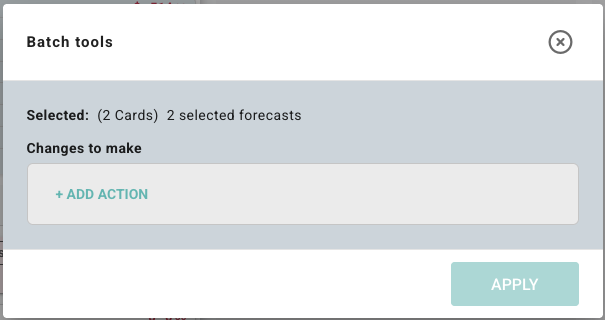
| More | Opens Batch tools with the selected cards as the starting target. |
| Clear selection | Exits multi-select mode. |
Delay selected forecasts
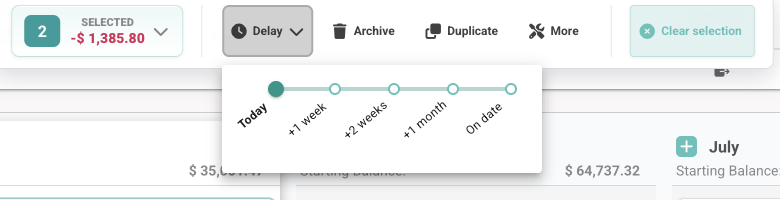
The Delay menu can show:
- Today: move selected forecasts to today.
- +1 week: push each selected forecast one week later.
- +2 weeks: push each selected forecast two weeks later.
- +1 month: push each selected forecast one month later.
- On date: move selected forecasts to one exact date.
If only some selected cards can be moved, Budgee moves the valid cards and explains what was skipped.
Drag selected cards as a group
After selecting multiple cards, drag one selected card to another period or column to move the selected group together.
Budgee still applies normal movement rules. Some items cannot be moved, such as locked actuals, paid items, scenario-controlled dates, and non-movable rows.
Where to find batch tools
You can open Batch tools in two ways:
- Open Options, then choose Batch tools.
- Select cards on the board, then click More in the batch action bar.
Batch tools are permission-controlled, so not every user will see them.
The simplest way to use batch tools
A good basic process is:
- choose Select
- build a filter that finds the right items
- check the transaction and series counts
- add one or more actions under Changes to make
- choose Apply
This helps you confirm the scope before making changes.
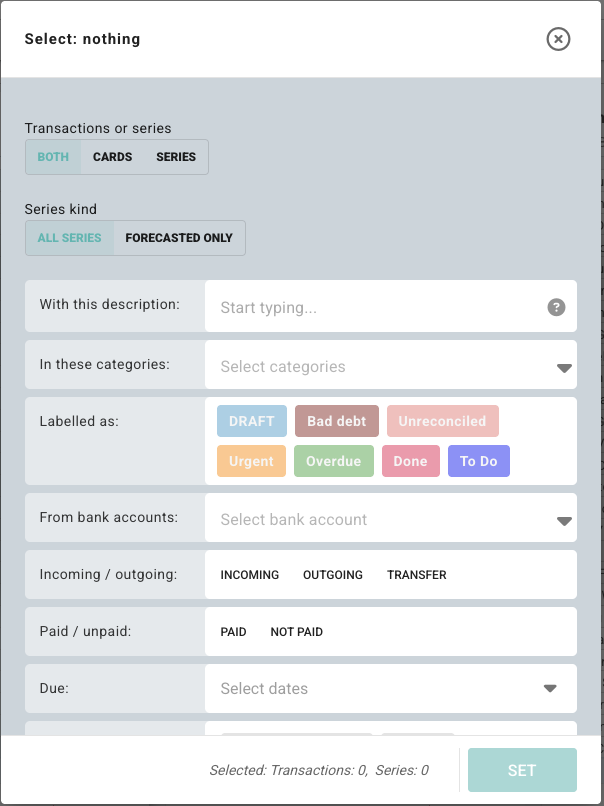
How selection works
The selector can target:
- Both
- Transactions
- Series
A category is the Budgee cash flow grouping for the transaction. If you connect accounting software, it usually comes from your chart of accounts.
You can filter by:
- category
- labels
- bank account
- allocation
- description
- type
- paid or unpaid
- due date before or after
- source
- contact
- transfer destination account
What counts as a transaction here
The Transactions target is limited to normal transaction items.
That means transaction selection in batch tools:
- includes basic transaction items
- excludes deleted transactions
- excludes generated recurring occurrences
- respects the board’s Hide drafts setting when drafts are hidden
So if something is missing from the count, it may be excluded because it is deleted, generated from a series, or currently hidden by board settings.
How series selection is different
Series are matched differently from transactions.
Due date filters apply to transactions, but not to series.
Series are matched using their template fields only, not the dates of generated occurrences.
That means a series match is based on the repeating rule and template data, not on the future items it happens to generate.
What each batch action does
| Action | What it does on transactions | What it does on series |
|---|---|---|
| Set Category | Replaces the category on each selected transaction | Replaces the series template category for future generated items |
| Set Bank account | Replaces the bank account on each selected transaction | Replaces the series template bank account |
| Set Allocation | Replaces the allocation on each selected transaction | Replaces the series template allocation |
| Set Labels | Replaces the label set on each selected transaction | Replaces the series template labels |
| Set Type | Replaces the transaction type | Replaces the series template type |
| Set payment state | Changes the paid flag on selected transactions | Writes the paid value into the series update payload, but series changes remain template-level rather than per-occurrence edits |
| Set description | Replaces the description | Replaces the series template description |
| Archive | Archives the selected items | Marks the whole series as archived |
| Delete | Deletes the selected items | Deletes the whole series record |
What to remember when changing series
When you apply a batch change to a series, you are changing the series template, not past generated occurrences.
That means the change affects the rule that generates future transactions, rather than rewriting historical generated items one by one.
This is the most important distinction in batch tools:
- transactions are changed directly
- series are changed through their template
Good habits for safer batch changes
Batch tools are powerful, so it is worth being a bit careful before applying a change to a large group.
Good practices
- start with the smallest filter that still finds the right items
- check the count readout before applying
- if you are changing series, remember you are editing the template
- use Archive when you may want the items back later
- use Delete only when you are sure
A tiny bit of caution here saves a lot of cleanup later.
Things batch tools do not do
Batch tools currently do not include a date change action.
Use the Delay control in the batch action bar when you need to move selected forecast dates.
They also do not let you add labels onto an existing label set.
Set Labels replaces the labels with the set you choose. It does not append to the current set.
Things to know
| Situation | What happens |
|---|---|
| Target set to Transactions | Only normal transaction items are selected |
| Deleted transaction | Excluded from batch selection |
| Generated recurring occurrence | Excluded from transaction selection |
| Board has Hide drafts on | Hidden drafts are not included in selection |
| Due date filter used | Applies to transactions, not series |
| Series selected | Matching is based on template fields |
| Set Labels used | Existing labels are replaced |
| Archive used on a series | The whole series is archived |
| Delete used on a series | The whole series record is deleted |
Example uses
Reclassify a group of transactions
Use batch tools when you have many transactions that should belong to a different category.
For example:
- select transactions with the old category
- apply Set Category
- move them all at once
Move transactions to a different bank account
If a group of transactions is linked to the wrong bank account, batch tools can fix them in one step.
Replace labels across a whole set
Use Set Labels when you want selected items to share a clean new label set.
Remember that this replaces the labels. It does not add to the existing ones.
Archive a stale repeating series
If a whole repeating series is no longer relevant, batch tools can archive it without editing each occurrence manually.
A simple mental model
If you want the shortest explanation, use this:
- selection decides the scope
- actions decide the rewrite
- transactions are changed directly
- series are changed through their template