
Create or import an organisation
Set up your organisation and choose how to bring in your data.
1. Start a new organisation
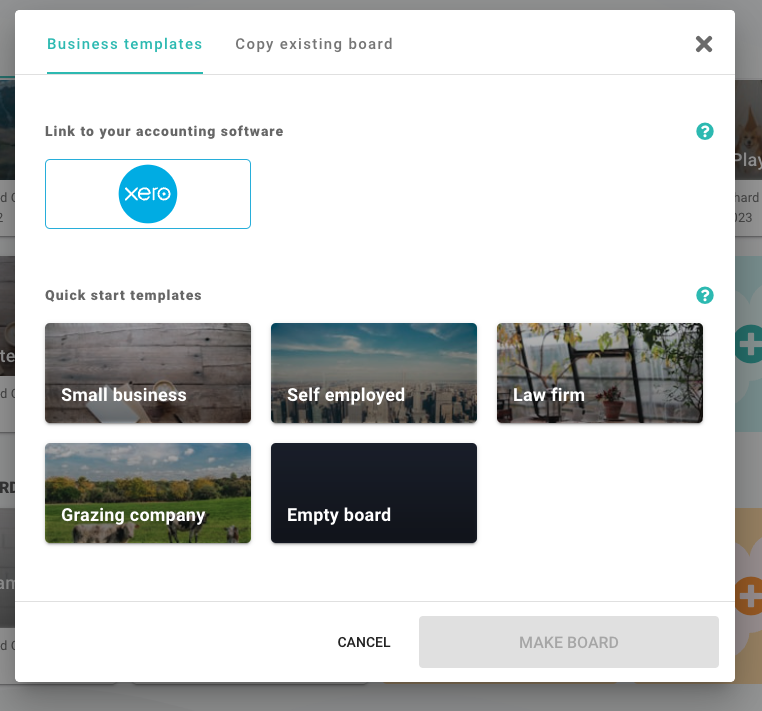
To start a new organisation, click an empty organisation slot, as shown below.

This opens the new organisation dialog.
2. Choose a template or link Xero
Choose the template you want to start with, then click Make board. Templates include preset categories: cash flow groupings that make a useful starting point for your board.
If you want to start a board that is linked to your accounting software instead, select the accounting software you use. Then click the Continue with... button at the bottom of the dialog.
3. Authorise connection
If you connect accounting software, you will be asked to authorise the connection. You may also be able to choose an organisation you have already authorised for Budgee.
4. Import history
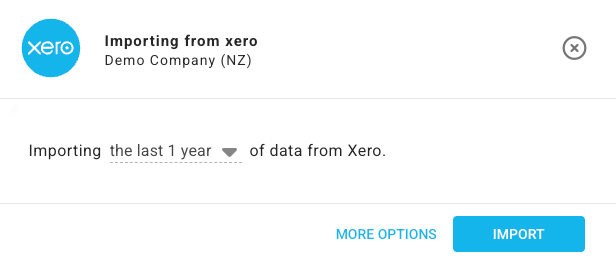
Budgee will ask how much history you would like to import. Around one year is usually a good starting point. Choose the history range, then click Import.
If you need more control before starting the import, open More options to choose category, bank account, and contact import scope. Learn more about import options and progress.
Larger organisations can take a few minutes. Budgee runs Xero imports in the cloud, so the import can keep going if you leave the page or close the window. Return to the organisation to check the current progress.
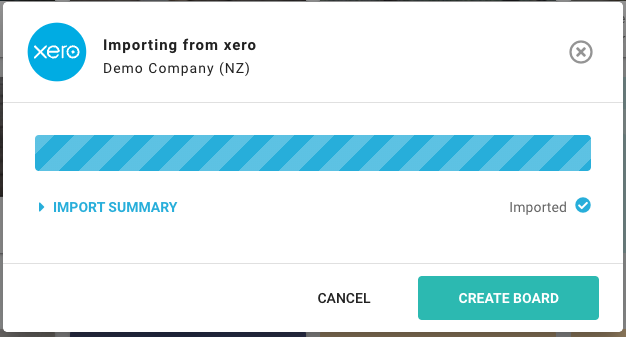
Once the import has finished, click Create Board or the completion action shown on screen. Budgee will take you to your new board.
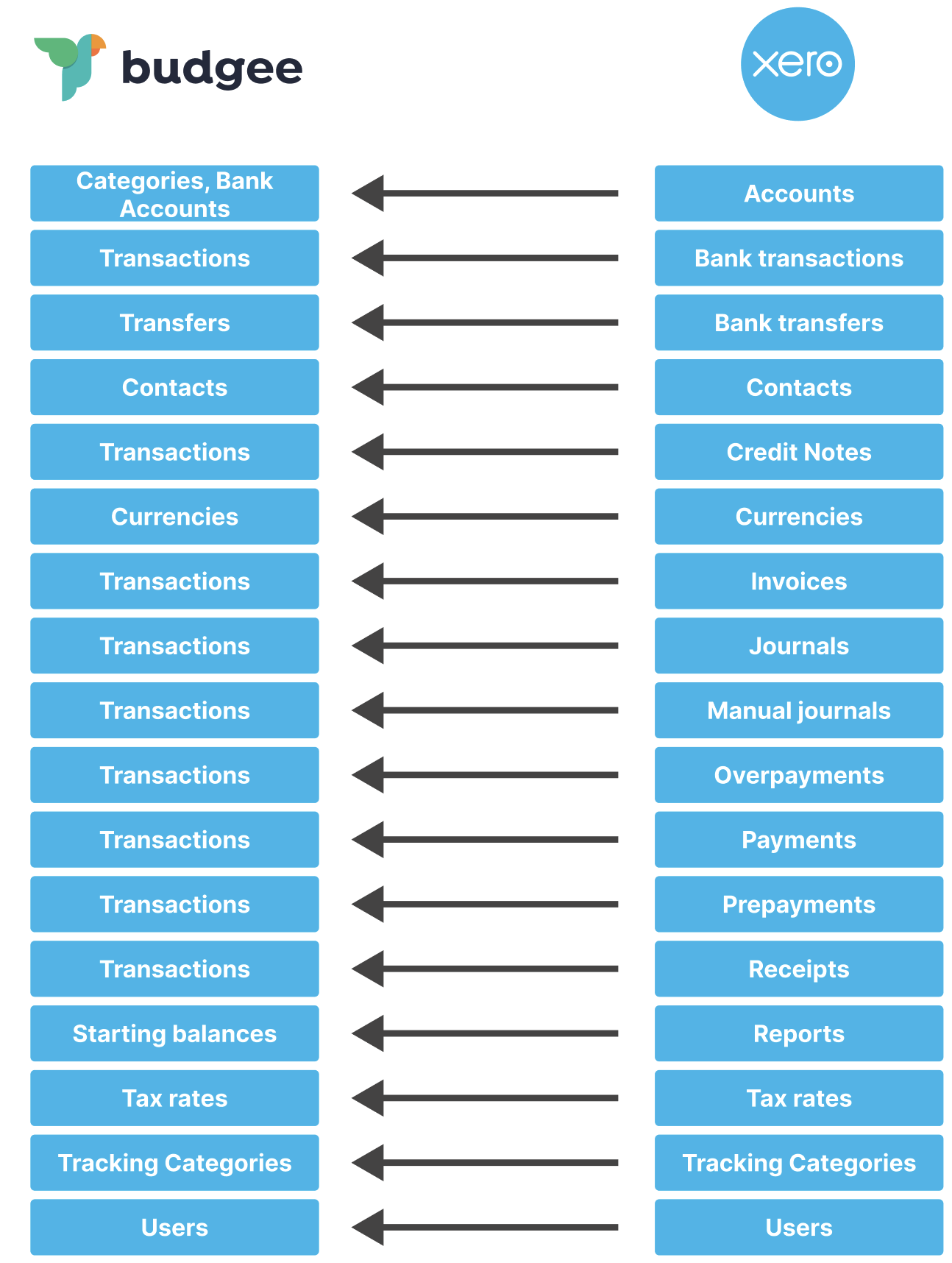
5. Xero maps to Budgee
The diagram below shows how information imported from Xero maps into Budgee.
Once you are on the board, Budgee may ask a few setup questions. The default answers are usually pulled through from your accounting data.
For larger organisations, it may take a minute or so for all transactions to appear.
Your board is now ready to review.
6. Update board
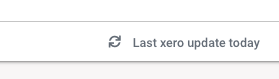
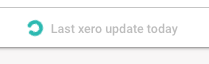
To bring in the latest transactions from your accounting software, click the Last update button on the left side of the header.
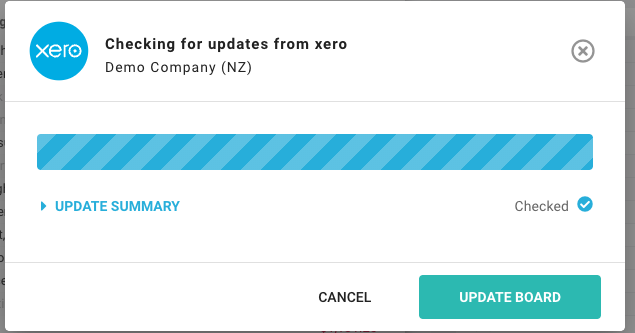
Then click Update Board.
Budgee will add, remove, and update the relevant transactions. It will also adjust forecasts where invoices and payments have already arrived. You can leave the page while an update runs and return to the current progress later.