
Transactions and repeating series
How to work with individual transactions and repeating series in Budgee.
This guide covers:
- adding a new transaction
- editing an existing transaction
- turning a transaction into a repeating series
- editing one repeating occurrence versus the whole series
Add a new transaction
Use the + button to add a future transaction.
Budgee opens the quick transaction form first, and you can expand it if you need more fields.
A simple order that works well
A good way to add a transaction is:
- choose the category
- check the amount and type
- confirm the due date
- add any bank account, contact, labels, or details
- save
This usually gives you the key structure first, then lets you fill in the extra details. Categories are the cash flow groupings Budgee uses to organise transactions.
Helpful default behaviour
When you start a new transaction, Budgee helps by setting some sensible defaults.
Due date defaults
- the due date defaults to today in the current period
- in a future empty column, it defaults to the first date of that period
- if the column already has transactions, it reuses the last transaction’s display date
Category defaults
- Budgee may auto-fill the description using the category label
- Budgee may also set the default type as incoming, outgoing, or transfer
That can make transaction entry faster and more consistent.
Edit a transaction
Open a transaction to edit its fields in full.
Common fields include:
- description
- amount
- due date
- expected date
- payment date
- bank account
- allocation
- contact
- labels
- details
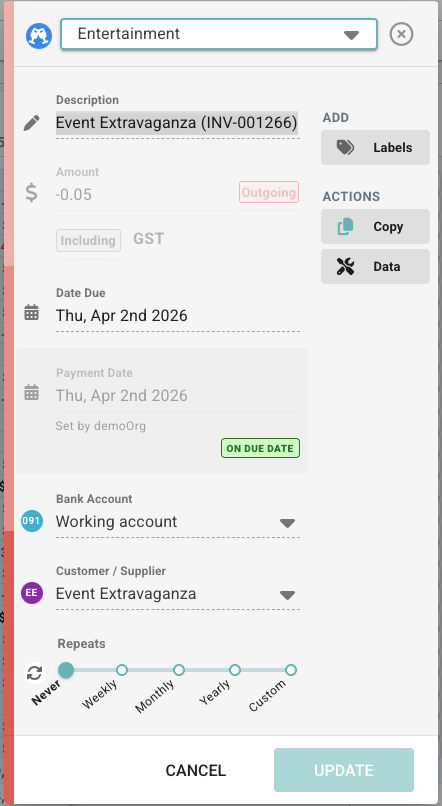
Helpful cues while editing
The transaction dialog can show banners or messages that give you more context about the transaction.
For example, you may see that the transaction is:
- archived
- forecasted
- linked to a scenario
- imported from a connected accounting system
Imported transactions can also include a link back to the source system.
These cues help explain where the transaction came from and whether some parts of it are controlled elsewhere.
When some fields may be locked
Some fields can be intentionally restricted depending on the type of transaction and your board settings.
For example:
- imported actuals may have amount and payment date editing disabled
- date fields may be disabled if an active date scenario is controlling the displayed date
If a field is locked, Budgee is usually protecting data that is being controlled by an import rule, a scenario, or a board-level setting.
Quick actions in the transaction dialog
Depending on the transaction, you may also be able to:
- mark it paid or received
- copy it
- archive it
- delete it
- restore it
If the transaction is part of an invoice group, archive and restore actions may also offer to include the whole invoice group.
Turn a transaction into a repeating series
Use the repeating control in the transaction form when the transaction should repeat.
You can choose a simple cadence such as:
- daily
- weekly
- monthly
- yearly
Or you can open the full repeating options for a more customised setup.
Repeating options
Repeating options can include:
- frequency
- day rules
- end rules
- amount change rules
When you save a normal transaction as repeating, Budgee creates a repeating series and replaces the standalone transaction with the series version.
Edit a repeating transaction
There are two different editing modes to understand when working with repeating transactions.
Edit only this one occurrence
Use this when the current occurrence is a one-off exception.
If you change a repeating occurrence and the change can stay local, Budgee saves it as an exception for that single transaction only.
This is the right choice when one month is unusual, but the overall repeating rule has not changed.
Edit this and following transactions
Use this when the change should carry forward through the series.
If your edit affects the repeating pattern, Budgee prompts you to choose between:
- Only this transaction
- This and following transactions in series
This is the key decision when editing repeating transactions.
A simple rule of thumb:
- if one occurrence is unusual, edit the occurrence
- if the repeating pattern has changed, edit the series going forward
Open the full series editor
Use the series editor when you want to change the repeating rule itself rather than one generated occurrence.
The series editor lets you change:
- the transaction template
- frequency and cadence
- end conditions
- automatic amount changes over time
Archiving from the series editor archives the whole series.
What happens if you mark a repeating transaction paid
If you mark a future repeating occurrence as paid while editing it, Budgee extracts that occurrence from the series.
That means the paid transaction becomes its own separate transaction instead of remaining as an untouched future repeat.
This helps keep the real paid transaction separate from the repeating rule that continues generating future items.
Archive and delete choices for repeating transactions
When you archive or delete a repeating transaction, Budgee may ask which level you mean.
The options can include:
- only this transaction
- this and following repeating transactions
- all repeating transactions
This lets you choose whether you want to:
- affect one occurrence only
- stop the series from this point onward
- remove the whole series
A practical way to think about it
If you only need to change one odd month, edit the occurrence.
If the repeating rule itself has changed, edit the series.
That one distinction will save a lot of confusion.
Things to know
| Situation | What happens |
|---|---|
| New transaction in the current period | Due date defaults to today |
| New transaction in a future empty period | Due date defaults to the first date of that period |
| New transaction in a period with existing transactions | Budgee may reuse the last transaction’s display date |
| Category selected | Description and type may be auto-filled |
| Repeating transaction edited locally | Budgee can save it as a single-occurrence exception |
| Repeating pattern changed | Budgee can prompt for Only this transaction or This and following transactions in series |
| Future repeating occurrence marked paid | That occurrence is extracted from the series |
| Series editor archived | The whole series is archived |
Example uses
Add a one-off future cost
Use a normal transaction when you want to add something like:
- an equipment purchase
- a one-time marketing spend
- a tax payment
- a single client invoice
Create a repeating cost or income item
Use a repeating series when something should keep recurring, such as:
- rent
- salaries
- subscriptions
- retainer income
Make a one-off exception
Edit one occurrence when a repeating transaction is mostly correct, but one instance needs to be different. For example:
- one month’s rent is higher
- one payment arrives late
- one invoice is paid early
Change the repeating rule going forward
Edit the series when the pattern itself has changed. For example:
- the amount has permanently changed
- the payment day has shifted
- the series should now end earlier or later
A simple mental model
| Term | Meaning |
|---|---|
| Transaction | One individual item |
| Repeating series | The rule that keeps generating transactions |
| Exception | A change to one occurrence only |
| Series edit | A change to the repeating rule going forward |