
Footer totals
Choose which totals appear at the bottom of your board.
What the footer is
The footer is the stack of totals shown alongside the bottom of a board view. It provides high-level totals such as:
- Total change (Net Cash Change or Net Profit)
- Sales Tax (if enabled)
- Incoming / Outgoing breakdown
- Received / Unreceived and Paid / Unpaid status
- Bank Accounts & Allocations
- Final balance & Available funds
Footers are available on transaction and grouped views (they are not a dashboard feature).
Two layers of footer control
1. Tab defaults
Use the tab editor to choose what a tab should open with: Edit tab -> Footer Options. From here you can choose default sections, rows, and even rename the Total change row (e.g., to "Net Profit").
2. Your live footer settings
Use the Footer Settings button on the footer rail to change what you personally see right now. These settings act like user overrides and are persistent.
How to show or hide footers
To change what footers are visible, you need to open the Footer Settings:
- Open the board view where you want to work.
- Hover over the footer labels on the left side of the screen.
- Click the
Footer Settingsbutton that appears.

Tip: If footers are already showing, the Footer Settings button fades in when you hover the footer rail. You can also hide a section quickly by clicking the x beside it.
Balance vs. Available
Budgee allows you to switch bank rows between Balance and Available in Footer Settings. This option is specific to bank accounts:
- Balance: The bank balance for that column.
- Available: The bank balance plus that bank account's credit limit.
Important: To use the Available setting, you must first set a Credit Limit for the bank account in the bank account edit dialog.
Available funds is an organisation-level total that includes all included bank balances, your organisation credit limit, and included bank credit limits.
Footer Reference Table
The Footer Settings dialog allows you to toggle specific sections and choose how bank accounts display.
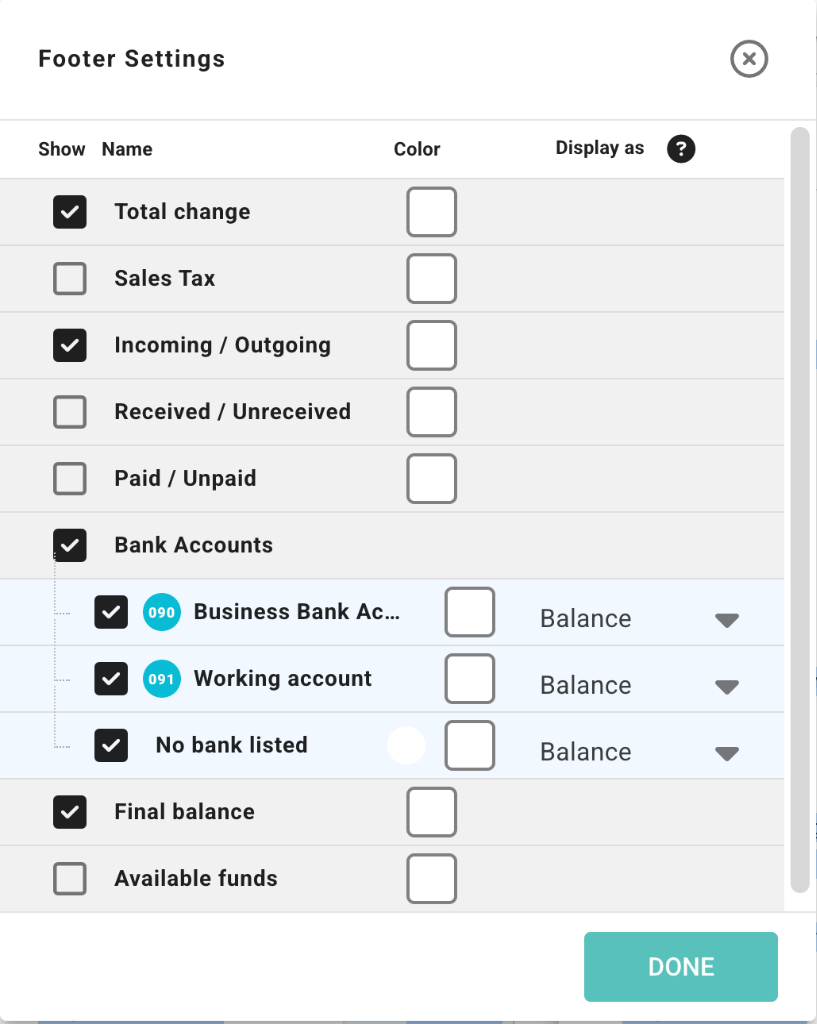
| Footer | What it means | When it appears |
|---|---|---|
| Total change | Net change for the current column | When enabled in settings or defaults |
| Sales Tax | Sales-tax total for the current column | Only when sales tax is enabled |
| Incoming / Outgoing | Splits column into money in and money out | When enabled |
| Received / Unreceived | Splits incoming amounts by paid status | When enabled |
| Paid / Unpaid | Splits outgoing amounts by paid status | When enabled |
| Bank Accounts | One row per visible bank account | When enabled and accounts available |
| Allocations | One row per allocation | When enabled and allocations active |
| Final balance | End-of-column balance | Uses bank balances included in total |
| Available funds | End-of-column available cash plus credit | When enabled and credit limits exist |
Quick Troubleshooting
A footer is missing?
- Check the tab's
Footer Optionsand your liveFooter Settings. - Verify organisation settings (e.g., Is Sales Tax or Credit Limits enabled?).
`No bank listed` appears?
This means Budgee has visible activity or balances that are not assigned to a bank account or allocation for the data currently being shown.